
How to Compare Dime Dime Baby AI Alternatives
Learn how to compare Dime Dime Baby AI alternatives by input, duration, mobile flow, output format, price clarity, and the path to a finished video.
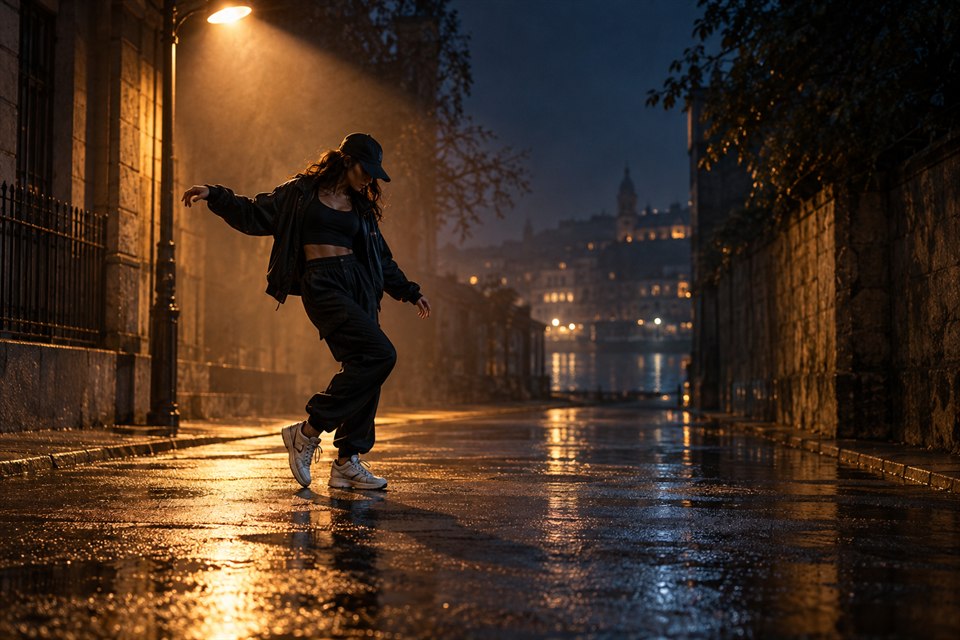
A useful Dime Dime Baby AI alternative is not automatically the site with the longest feature list. Compare whether each option makes your specific job obvious: provide the photo you already have, understand what will come back, see the price before committing, and reach a downloadable dance video with as little friction as possible.
Use this buyer’s checklist to compare Bby Wow AI generators, template editors, and broader photo-to-dance tools without getting distracted by features you will not use.
Start with the input
Look at what the tool asks you to supply.
- One-photo generator: useful when you have a single portrait and want new dance motion.
- Template editor: useful when you already have several photos or clips to arrange.
- General video generator: useful for open-ended scenes, but may require more choices and prompting.
- Camera filter: useful for recording yourself live, not for animating a still full-body photo in the same way.
If your starting point is one picture, a focused Dime Dime Baby AI Video Generator avoids an unnecessary source-video or timeline step.
Eight criteria worth comparing
1. Is the output described before upload?
Look for the aspect ratio, file type, and duration. This site states the current result up front: a 10-second vertical 9:16 MP4. Clear output details make it easier to plan where the clip will be used.
2. Can you see the whole uploaded photo?
A vertical preview should show the subject’s full body rather than hiding the top and bottom behind a wide crop. You should be able to replace a poor image before generating.
3. How many steps sit between idea and result?
Count the meaningful decisions, not the number of buttons. For a prepared dance, photo, duration, and Generate are enough. Extra style panels or prompt fields can slow down a user who wants one recognizable outcome.
4. Does it work comfortably on mobile?
Check the upload area, duration buttons, sign-in view, and checkout on a phone-width screen. A desktop-only timeline is a poor match for a trend discovered and posted on mobile.
5. Is pricing stated as an understandable purchase?
“One video” is easier to evaluate than an unexplained token balance. Check the exact total, the number of outputs, and whether the payment renews.
Here, you can buy 1 video for $2.99, 3 for $6.99, or 10 for $18.99 as one-time packs. See the current pricing details.
6. Is the current video length priced clearly?
Each current 10-second generation uses one video from the pack. The duration guide compares short-form pacing and makes clear that 15 seconds is not currently available here.
7. Can you find privacy and terms pages?
Legitimate consumer flows make those pages easy to reach before purchase. Read them when comparing how account data, uploads, local drafts, and payments are handled.
8. Can you preview and download directly?
The result should not force you into an unrelated editing suite. A clear preview-and-download finish leaves you free to add sound or captions wherever you normally publish.
Focused generator versus general creative suite
A broad suite is helpful if you plan to make many kinds of video. It may include text-to-video, image styles, editing tracks, voice tools, and reusable projects. The tradeoff is a larger interface and more decisions.
A focused generator may compare well when your intent is already specific. You know the dance, you have the photo, and you want a vertical clip. The product should make that path fast and legible.
Avoid comparison traps
Do not compare a preview with a finished download
Some tools label a low-detail or watermarked preview as “free.” Check what you can actually download and whether the displayed example represents the paid result.
Do not compare subscriptions with one-time packs as if they are equal
A low monthly headline may cost more if you only need one post. A one-time price may be the better fit for occasional use even when the per-video number is visible.
Do not assume more settings mean better results
Settings create value only when you know why you need them. For a fixed dance experience, fewer controls can be a product advantage.
A five-minute evaluation routine
- Open the tool on the phone you will use.
- Confirm it accepts your image format and shows the whole photo.
- Find the promised duration, aspect ratio, and download format.
- Read the exact price and renewal terms.
- Locate privacy and terms pages.
- Count the choices required before generation.
- Decide whether you need generation, editing, or both.
Frequently asked questions
What should I compare in a Dime Dime Baby AI alternative?
Look for a clear one-photo workflow, visible output details, mobile-friendly controls, transparent pricing, and a direct preview-and-download path.
Should I choose a general video editor or a focused generator?
Choose an editor for manual control across many clips. Choose a focused generator when your goal is one recognizable dance video with fewer decisions.
Do I need a subscription?
Not here. You can choose a one-time pack for 1, 3, or 10 videos, so you can match the purchase to the number you expect to make.
Try the focused one-photo path
Use the generator when your goal is a Dime Dime Baby dance from one image. Before creating, review one-time packs, the CapCut template comparison, and the safety and pricing checklist.
Keep exploring
Related Dime Dime Baby guides
Dime Dime Baby CapCut Template vs AI Generator
Compare a Dime Dime Baby CapCut template with a one-photo AI generator by setup, creative control, output, and the fastest path to a finished video.
Read articleTrust guideIs Dime Dime Baby AI Safe and Legit?
Use a practical checklist to judge Dime Dime Baby AI safety, legitimacy, photo handling, checkout clarity, account access, and site information before you create.
Read articleFormat guide10 vs 15 Seconds: Current Dime Dime Baby Video Length
The generator currently creates a 10-second Dime Dime Baby AI video; learn how that length compares with a 15-second short-form clip.
Read articlePut the guide into practice
Make your Dime Dime Baby video.
Upload one photo to create a 10-second video. Sign in only when you are ready to generate.