
How to Make a Dime Dime Baby AI Video on iPhone or Android
Make a Dime Dime Baby AI video in a mobile browser with one photo, a direct one-time purchase, a saved local draft, and a 10-second vertical MP4 download.
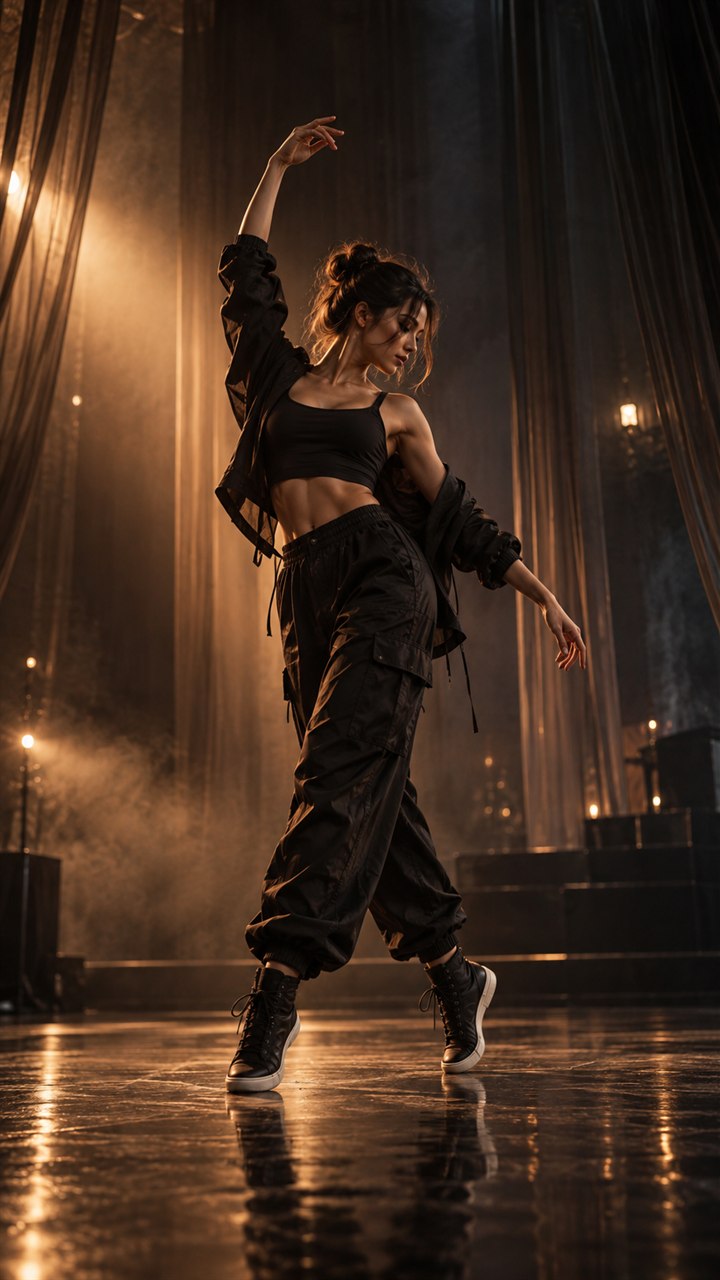
You can make a Dime Dime Baby AI video on an iPhone or Android phone without installing a separate app. Open the generator in your mobile browser, choose one clear photo from your camera roll, sign in when you are ready to create, and download the finished 10-second vertical MP4.
The mobile flow is designed to keep that path short. If sign-in or checkout interrupts the setup, the site saves the current photo as a local draft on the same device and browser so you can continue when you return. If your photo is ready, open the mobile generator and use this guide as a checklist.
What you need on your phone
Prepare these four things before you start:
- an iPhone or Android phone with a current web browser;
- one JPG, PNG, or WebP photo that is no larger than 10 MB;
- a Google account or an email address and password for sign-in;
- a one-time video pack when you are ready to generate.
There is no separate mobile app to find or install. You also do not need to record a dance or upload a reference video. The visual input is one photo, and the generator supplies the prepared movement.
For the cleanest first attempt, choose a standing, full-body photo with one clear subject. Both feet, both hands, and the face should be visible. A photo already stored in the phone's camera roll is enough; expensive camera equipment is not required. The complete photo guide explains lighting, background contrast, and framing in more detail.
Step 1: Open the generator in your mobile browser
Visit the homepage in Safari, Chrome, or your usual phone browser, then move to the generator. You can hold the phone normally in portrait orientation. The controls stack vertically on a small screen, so the upload, preview, purchase, and finished video remain in one mobile-friendly flow.
If you arrived from a social app's built-in browser and the file picker does not behave as expected, open the same page in your phone's main browser. This gives the camera roll and download controls the normal browser access available on the device.
Step 2: Choose one photo from the camera roll
Tap the upload area and select a photo. Before continuing, inspect the full-height preview rather than checking only the face. A dance video uses the entire body, so confirm that the following details are visible:
- The head and face are sharp enough to recognize.
- The arms are not hidden behind another person or object.
- The legs and feet remain inside the frame.
- The subject stands out from the background.
- The image does not already contain app buttons, old captions, or a large watermark.
If a selfie cuts off the lower body, go back to the camera roll and choose a photo taken from farther away. Replacing the source image is usually more useful than enlarging a small screenshot.
Step 3: Sign in without rebuilding your setup
When you press the create button, sign in with Google or use an email address and password. An email-and-password account opens without an email verification step.
The photo you selected is saved as a local draft before the sign-in handoff. When you return on the same phone and browser, the generator restores the setup so you do not have to search through the camera roll and upload the same image again.
The draft belongs to that browser on that device. If you switch from an iPhone to a laptop, use a private browsing window, or clear the browser's site data, choose the photo again on the new setup.
Step 4: Choose the number of videos directly
If you do not have a video available, the purchase prompt shows the one-time choices directly in the generator:
- 1 video for $2.99;
- 3 videos for $6.99;
- 10 videos for $18.99.
These are one-time purchases, not subscriptions. Each current 10-second generation uses one video from the pack. Choose one video for a single prepared photo, three when you want useful variations, or ten only when you already plan several people, outfits, or posts. The pay-per-video pricing guide gives a fuller comparison.
Checkout also preserves the local draft on the same device and browser. After payment succeeds and you return, continue with the photo you already chose instead of beginning again.
Step 5: Generate, preview, and download
Start generation after the photo and purchase choice are ready. The current output is a 10-second, 9:16 vertical MP4. When the preview appears, watch the entire clip on the phone before downloading it. Check that the subject stays recognizable and that the full-body movement remains easy to see at mobile size.
Tap download to save the MP4. The exact place where a phone displays a download depends on the browser and device settings: it may appear in the browser's download list, the Files app, or the selected downloads folder. From there, import it into the social app where you want to post.
For TikTok, Instagram Reels, or YouTube Shorts, add your chosen sound and captions after downloading. The vertical publishing guide explains safe areas, cover selection, and platform previews.
Quick fixes for common mobile problems
The photo picker does not open
Open the generator in the phone's main Safari or Chrome browser instead of an embedded social-app browser. Then tap the upload area again.
The preview looks tightly cropped
Replace the photo with a portrait or full-body image that leaves space above the head and below the feet. Do not rely on a close-up selfie for a full dance.
The draft did not reappear
Return in the same browser on the same device. A private tab, cleared site data, or a different device cannot access the earlier local draft, so the image must be selected again.
The finished video is not 15 seconds
The current generator creates a 10-second video. A 15-second output option is not currently available; the 10-versus-15-second guide keeps that difference clear.
Frequently asked questions
Can I make a Dime Dime Baby AI video on an iPhone or Android phone?
Yes. Open the generator in your mobile browser, upload one clear photo, and create the current 10-second vertical video.
Do I need to install an app?
No. The upload, sign-in, purchase, preview, and MP4 download flow works in the browser without a separate app.
Will my photo still be there after sign-in or checkout?
On the same device and browser, the generator saves the current photo as a local draft before sign-in or checkout and restores it when you return.
Make the first mobile version
Start with one uncropped photo from the camera roll, keep the whole body visible, and use the same browser through sign-in or checkout. Open the generator on your phone, or review the current one-time packs before you create.
Keep exploring
Related Dime Dime Baby guides
How to Make a Dime Dime Baby AI Video in 3 Steps
Make a 10-second Dime Dime Baby AI dance video from one photo in three clear steps, with practical photo and sharing tips.
Read articlePhoto guideBest Photo for a Dime Dime Baby AI Dance Video
Choose the best photo for a Dime Dime Baby AI dance video with practical guidance on full-body framing, lighting, pose, background, and common fixes.
Read articlePublishing guideDime Dime Baby Video for TikTok, Reels and Shorts
Prepare a 9:16 Dime Dime Baby AI video for TikTok, Instagram Reels, and YouTube Shorts with framing, duration, caption-safe-area, preview, and download tips.
Read articlePricing guideDime Dime Baby AI Pricing: Pay Per Video
See Dime Dime Baby AI one-time packs for 1, 3, or 10 videos, compare the price per video, and learn how each 10-second video is charged.
Read articlePut the guide into practice
Make your Dime Dime Baby video.
Upload one photo to create a 10-second video. Sign in only when you are ready to generate.