
Bby Wow AI vs Dime Dime Baby: What Is the Difference?
Learn how Bby Wow AI relates to Dime Dime Baby, what a one-photo dance generator does, and how filters, templates, and photo-to-video tools differ.
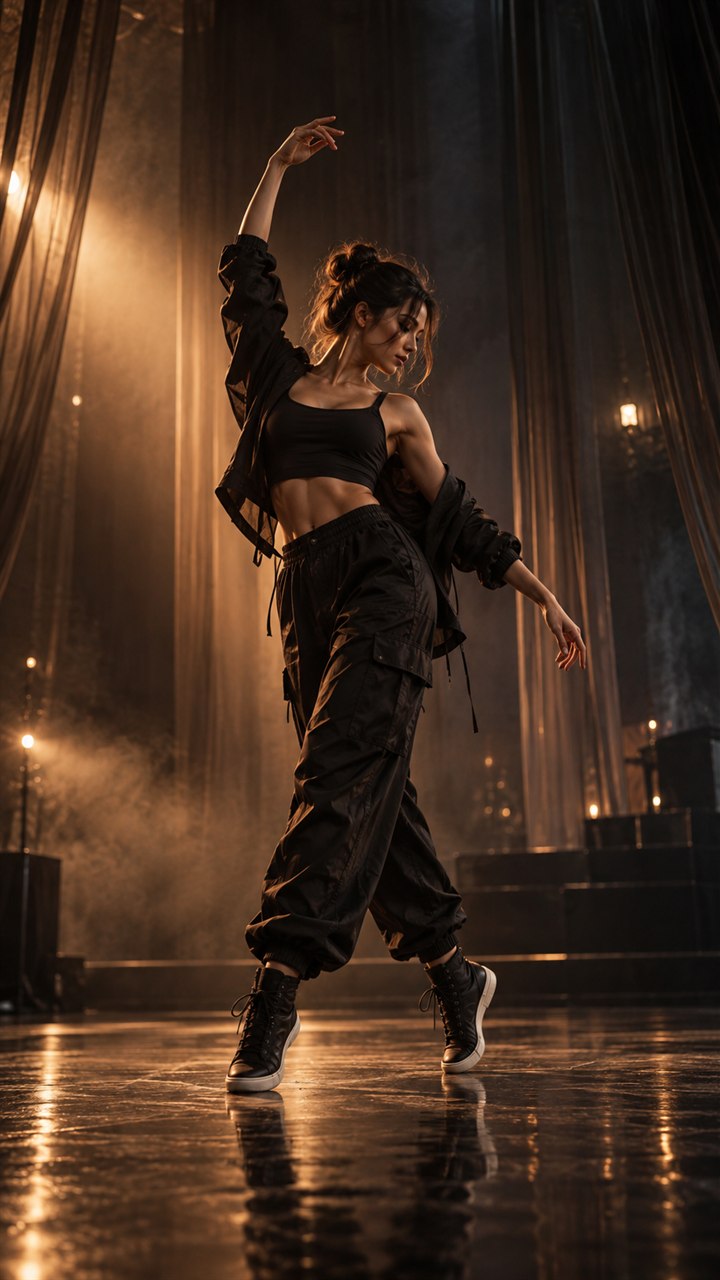
“Bby Wow AI” and “Dime Dime Baby AI” often appear in searches for the same practical goal: take one photo and turn it into a recognizable vertical dance clip. The wording varies across posts, captions, and tools, but the person searching usually wants to know two things—what the effect is and how to make it without filming a dance.
This guide answers both questions and shows where a focused Bby Wow AI video generator fits among filters, templates, and traditional video editors.
What does Bby Wow AI mean?
In this context, Bby Wow AI describes a photo-to-dance workflow. You provide a still image, choose a prepared dance experience, and receive a new video in which the subject appears to move.
It is useful to separate that idea from three neighboring terms:
- A camera filter changes a live camera view or an existing image.
- A video template arranges photos and clips inside a prepared edit.
- A photo-to-video generator creates new moving frames from a still image.
Those approaches can produce content for the same trend, but the work you do is different. The focused generator route is designed for people who have one photo and do not want to assemble a timeline.
Is Bby Wow the same as Dime Dime Baby?
For someone looking to create the dance video, the two names commonly point to the same search intent. Rather than sending visitors to duplicate tools, this site uses one Dime Dime Baby AI generator for the one-photo workflow and explains the naming in the guide you are reading.
That keeps the choice simple: you do not need to decide between two almost identical generators before you upload a photo.
How the one-photo workflow works
1. Choose a complete subject
A full-body standing image is the most versatile input. Keep the face, hands, legs, and feet visible. One subject against a plain or uncluttered background is easier to read than a group photo.
2. Upload and check the vertical preview
Open the generator, upload the image, and inspect the whole portrait preview. Replace the photo if the frame cuts off important body details or the subject is too small.
3. Create the current 10-second video
The generator currently creates a 10-second vertical MP4 and uses one video from your pack. A 15-second output option is not currently available. The duration comparison explains the pacing difference.
4. Generate and review
Start the generation, then review the completed clip on the same kind of phone screen where people will watch it. Download the result when the movement and framing support your idea.
Why people choose a focused generator
A general editor offers more controls, but every control is another choice. A focused Bby Wow AI video generator is valuable when it answers the important questions in advance:
- the output is vertical;
- the movement is already selected;
- the input is one photo;
- the current video length is 10 seconds;
- the result can be previewed and downloaded.
That makes it especially approachable on mobile. There is no multi-track timeline to manage with your thumbs and no need to prepare a source dance clip.
Photo choices that support the effect
Use a sharp image with an easy-to-follow silhouette. Avoid mirror selfies that hide one arm, sitting poses that fold the legs together, or photos where a bag, table, or another person covers the body.
Lighting does not need to be studio-perfect. It does need to make the subject distinct. If a black outfit blends into a dark wall, try a brighter image or one with stronger background contrast. See the full photo checklist for a side-by-side decision guide.
Bby Wow AI versus a CapCut template
Use the one-photo AI route when you want the subject in a still image to become the dancer. Use a template editor when you already have several photos or clips and want manual timing, text, transitions, and music controls.
Neither is universally better; the better tool is the one that matches your starting material. Our CapCut template versus AI comparison breaks down the difference by input, effort, and output.
Frequently asked questions
Is Bby Wow AI the same trend as Dime Dime Baby AI?
The names are commonly used for the same one-photo dance-video idea and search intent. This site supports that focused photo-to-dance workflow.
Is Bby Wow AI a camera filter?
A photo-to-video generator creates a new clip from your image. That is different from applying a live camera filter.
Can I make a Bby Wow video on a phone?
Yes. The upload, generation, preview, and download flow is designed to work on mobile screens.
Create a Bby Wow-style dance video
Start with one clear image in the Dime Dime Baby generator. When you are ready to create, choose a one-time video pack rather than a subscription.
For next steps, read the three-step creation guide or compare the best Dime Dime Baby AI alternative features.
Keep exploring
Related Dime Dime Baby guides
How to Make a Dime Dime Baby AI Video in 3 Steps
Make a 10-second Dime Dime Baby AI dance video from one photo in three clear steps, with practical photo and sharing tips.
Read articleComparisonDime Dime Baby CapCut Template vs AI Generator
Compare a Dime Dime Baby CapCut template with a one-photo AI generator by setup, creative control, output, and the fastest path to a finished video.
Read articleBuyer guideHow to Compare Dime Dime Baby AI Alternatives
Learn how to compare Dime Dime Baby AI alternatives by input, duration, mobile flow, output format, price clarity, and the path to a finished video.
Read articlePut the guide into practice
Make your Dime Dime Baby video.
Upload one photo to create a 10-second video. Sign in only when you are ready to generate.